Prince William County Public Schools
Navigating ParentVUE and StudentVUE App
Viewing Grades in the ParentVUE and StudentVUE App for Secondary Schools
The easiest way to view grades and assignments is via the web application version: ParentVUE or StudentVUE.
When using the ParentVUE/StudentVUE mobile app, users must select the appropriate marking period and class category to view grades and assignments for the associated classes. A parent would need to select each marking period and class category to view all student grade details. It's important to note that this step is not required when accessing grades from the website.
To view Student Grades
- Log in to the ParentVUE/StudentVUE app.
- Select desired student.
- Select "Grade Book."
- Select the drop-down option to view marking periods and class categories.
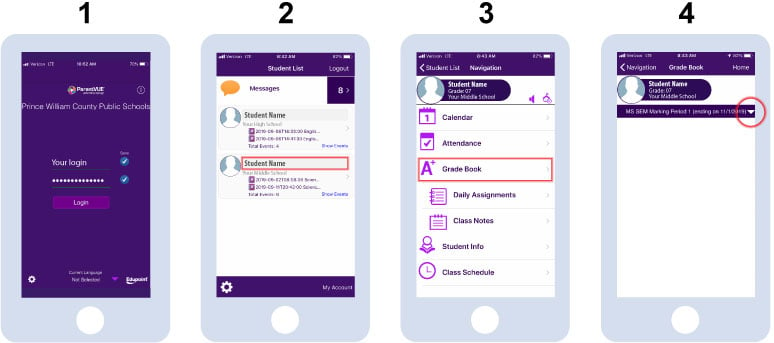
- A student's classes are sorted into class categories (category abbreviations are defined in the table below). Based on the student's class schedule, select the current marking period and a class category to view grades and assignments for the associated classes. Only classes in the selected category will display, along with the overall grades.
- For example, Social Studies and Language Arts are year-long classes. To view these classes for the first marking period, select MS YR Marking Period 1, or Middle School Year-long Marking Period 1.
- Reminder: this additional category selection is not required when accessing from the web application.
Marking Period Prefix Associated Classes Class Example MS QTR Quarter-long classes (i.e., exploratory/specials) Independent Study MS SEM Semester-long middle school classes Soar and Success Gr8 and Intro For Lang Gr8 MS YR Year-long sixth/seventh grade classes Social Studies Gr8 YR Year-long eighth grade classes English Grade 8 HS YR Year-long Carnegie-credit and high school classes Pre-AP Algebra I HS SEM Semester-long high school classes Prob/Stat - To view class assignments, select the class name.
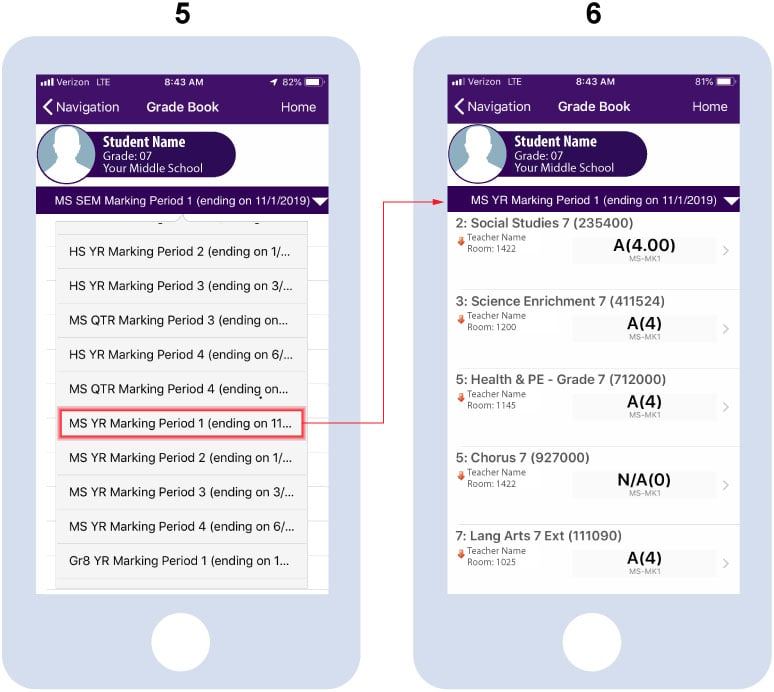
- Select "Grade Book" (upper left) to go back to the list of classes in the selected category.
- To view classes in a different category, select another class category/marking period.
Note: Not all marking period sets will display student classes. For example, if the student was not scheduled into any MS SEM Marking Period 1 classes, none display.
Video
Transcript
- Hi, I'm Tabitha Caldwell with the Hub team. Also a parent of a first grader. As ParentVUE is new this year we have worked really closely with the schools to improve usability and functionality. To be as transparent as possible we would like everyone to be aware of the following display issues recently discovered. These issues only affect ParentVUE mobile application. If you access through the web, you will not be impacted.
- So let me help you find your student grades. Simply click your grade book menu. Now the issue is, how do you know where your student's classes fall. You have a lot of options. Let's work through each one. MS will always be your middle school courses. HS will display high school courses taken. Your student courses will be under the appropriate term.
- First we're going to look at MS SEM displayed here. This is your middle school semester marking period one courses. Simply clicking in the appropriate marking period will be important because we are in marking period one. So, you're going to scroll down. If you have any middle school semester marking period one in your option. Note for this student, in order, there are no classes he takes that are middle school semester long classes.
- Next, my option is high school year marking period one. You can ignore all the other marking periods as discussed, as we are in the first marking period. Simply clicking on the high school marking period one will display my student's taking algebra one. And I can now access his grade book for algebra. Simply click algebra. Now his overall score and assignments will be displayed. To view other classes he's taken, simply go back to your grade book menu item and our next option is to view the middle school quarter classes. You'll notice that this is identified by MS QTR marking period one, located here. My student has independent study listed here for his quarter class. Next you have your middle school YR course. These are your middle school year long classes. To simply view these, I'm gonna click the marking period one. Note majority of your student classes for middle school will be housed here. These are classes such as social studies, science. Also I have health and chorus, and language arts listed. You can quickly see your student's overall grade here and again to view further details such as their assignments simply click on the class you'd like to view.
- Let's return back to our grade book. Returning back to our grade book, I have identified and seen all of my student's classes. The key takeaways are, your MS semester long classes are located under the MS SEM code. Your middle school quarter classes will be displayed under MS QTR. And if you have an eighth grader you also may see Gr8 YR term codes here. These are simply for your year long eighth grade courses. So we just finished our student in middle school, viewing their courses. For high school students, apply the same concepts. Work through finding your courses by narrowing down to marking period one, in the appropriate term such as semester or year.
- In closing, thank you so much for your patience as we work through updating the mobile app for you. And a reminder, this issue is okay if you use the website itself.
Viewing Grades in ParentVUE and StudentVUE for Elementary Schools
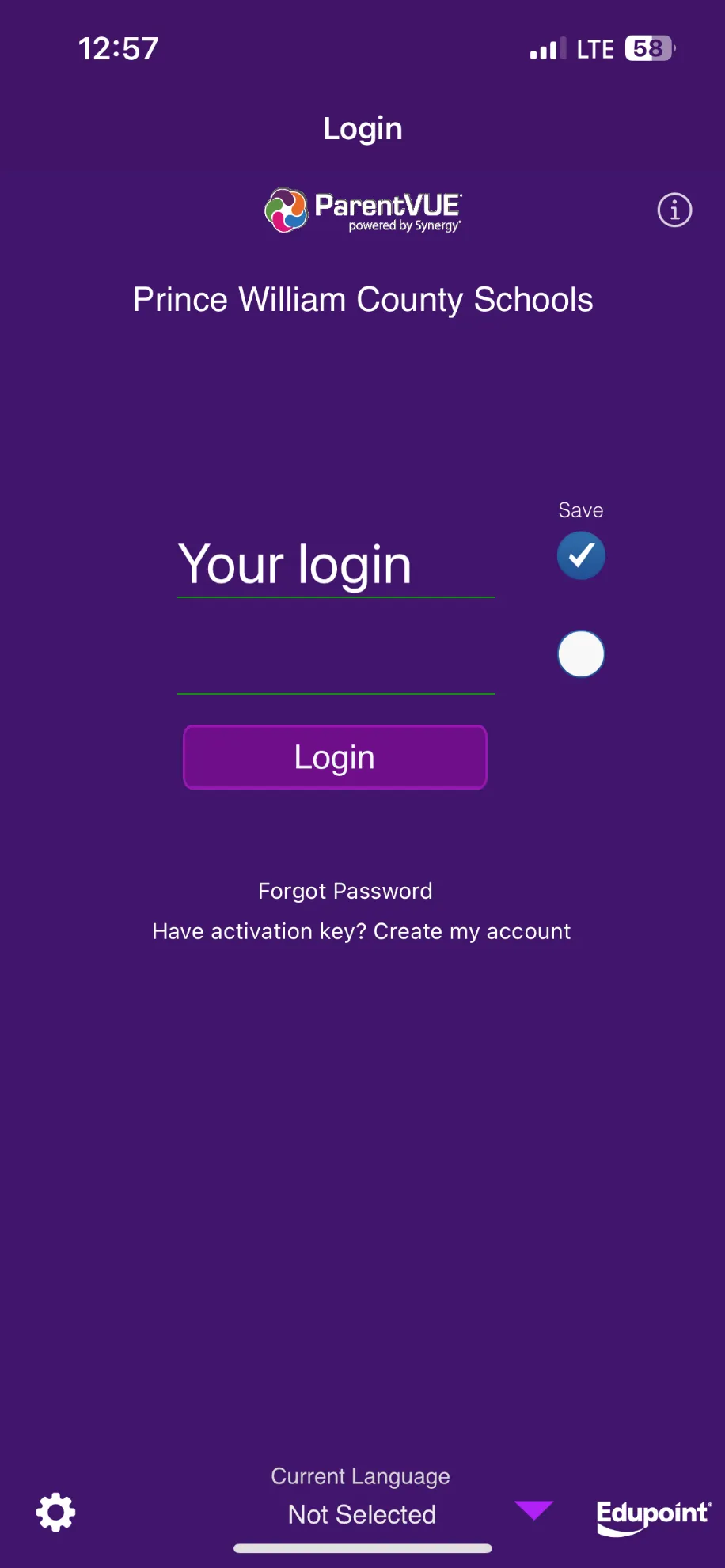
- Log in to the ParentVUE/StudentVUE app.
- Select the desired student.
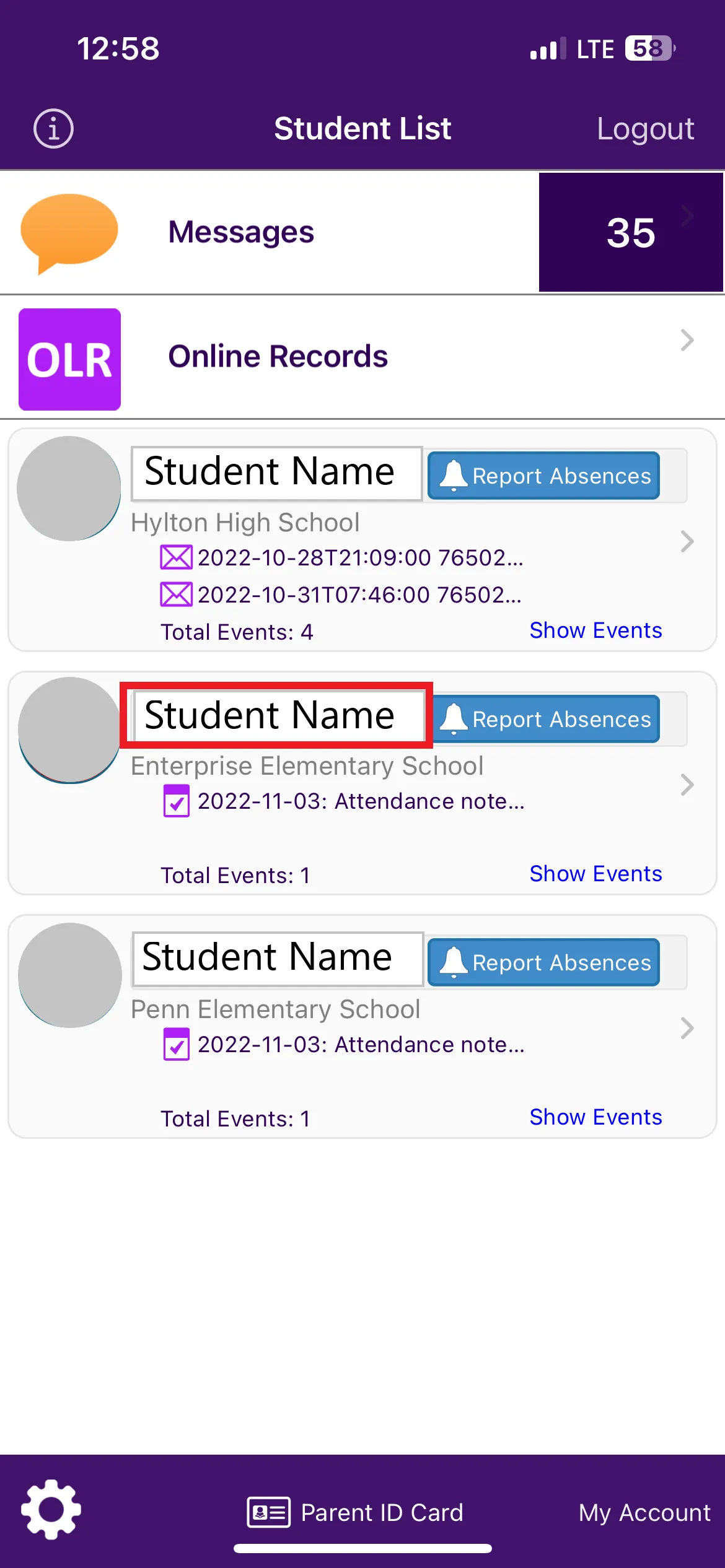
- Select “Documents.”
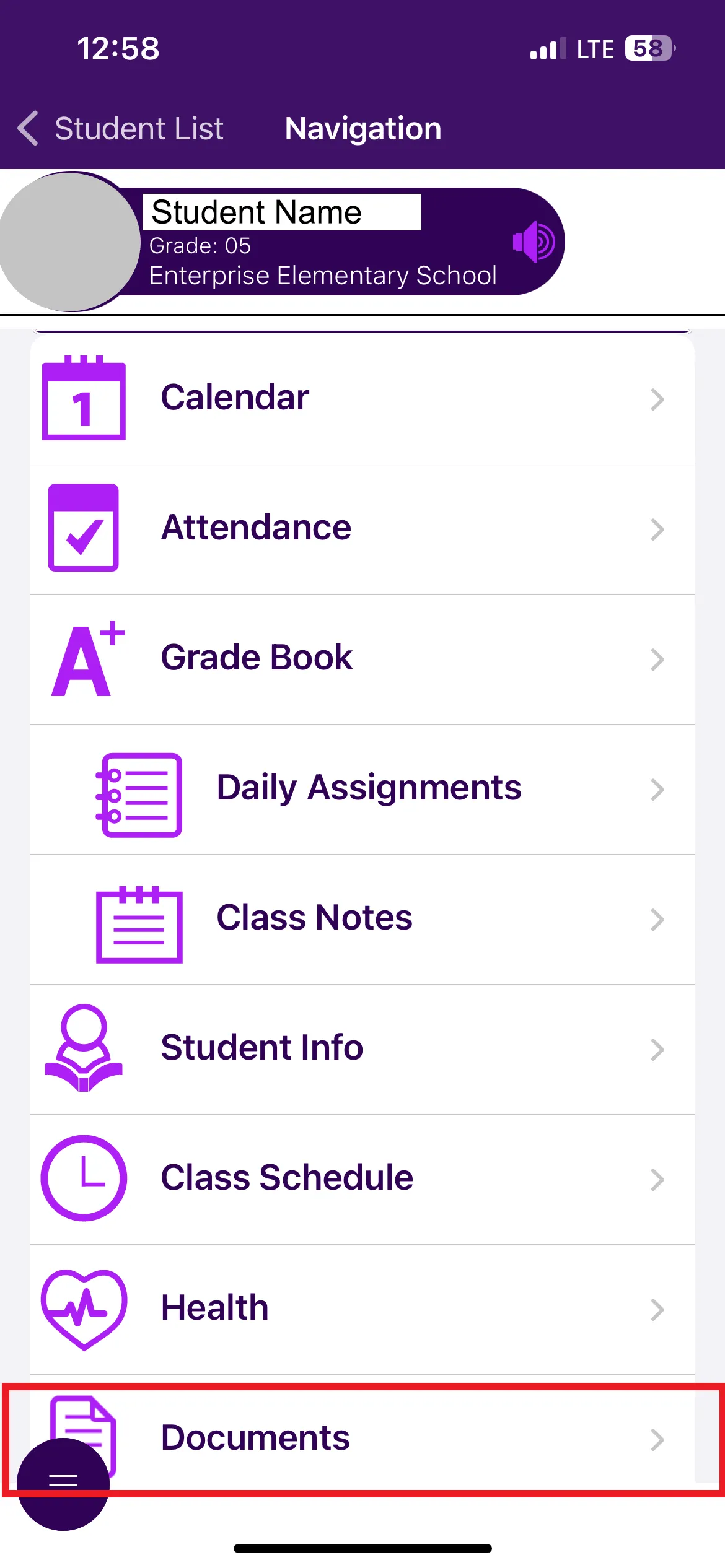
- Select the PDF link for the desired report card.