Prince William County Public Schools
Setting Up Multi-Factor Authentication
Multi-factor authentication (MFA) is a security method that requires users to provide more than one credential (factor) when logging in. Common factors include something you know (like a password) and something you have (like a phone).
MFA adds an extra layer of security to protect confidential information – even if one credential is compromised.
Overview of Multi-Factor Authentication
How to Set Up Multi-Factor Authentication
MFA is not required when using a PWCS device at a PWCS building location.
Select the MFA option that you would like to use from the options below.
Use the Microsoft Authenticator Mobile App for MFA - Setup on a Computer
Requirements: To complete this process, you must first install the Microsoft Authenticator app from the Apple App Store (iOS) or Google Play (Android) on your mobile device.
Step 1: Install the Microsoft Authenticator App on Your Mobile Device
- Install the Microsoft Authenticator app from the Apple App Store or Google Play.
Step 2: Open a Web Browser and Visit the Microsoft Security Info Webpage
- After you have installed the Authenticator app, open a web browser on your mobile device.
- Visit the Microsoft Security Info webpage and sign in with your PWCS account if prompted.
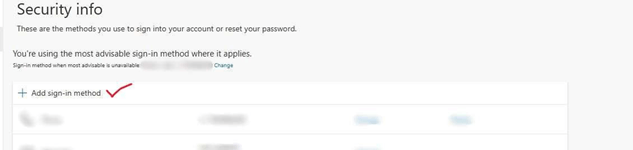
Step 3: Add Sign In Method
- Click “Add sign-in method”
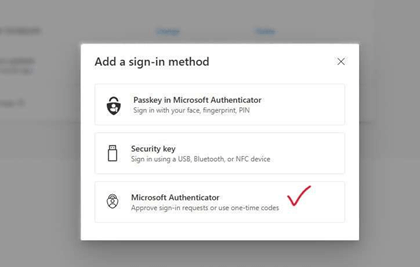
Step 4: Select the Sign In Method
- Click “Microsoft Authenticator” to begin setting up this method.
Step 5: Click “Next”
- This window is directing you to download and install the Microsoft Authenticator app. You should have already installed the required app on your mobile device.
- Click “Next” to continue.
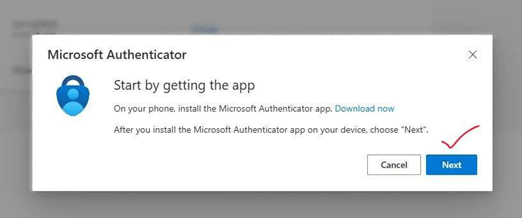
Step 6: Begin Adding the Account to Authenticator
- On your mobile device, open the Microsoft Authenticator app. If prompted, allow notifications.
- Tap the + sign in the top right corner.
- Tap “Work or school account”
- Tap “Scan QR Code.”
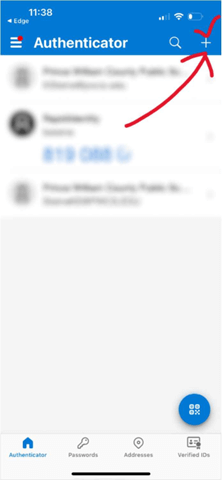
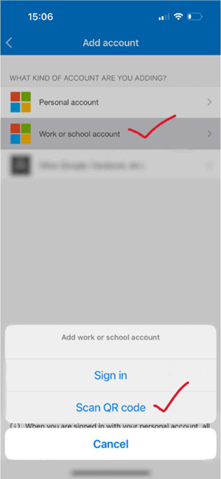
- Switching back to your laptop/desktop, click “Next” to continue and receive a QR code.
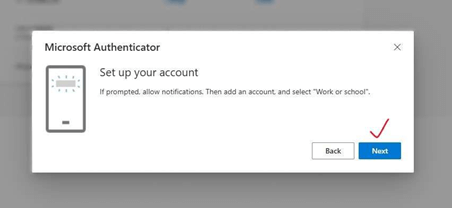
Step 7: Pair Your Account
- Use your mobile device to scan the QR code (do not attempt to scan the code below). This action will add your PWCS account to the app.
- Go back to your web browser and click “Next.”
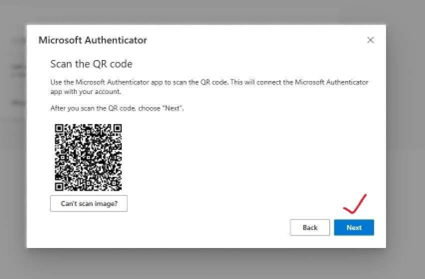
Step 8: Enter Verification Number
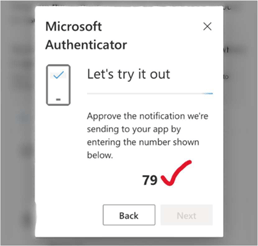
- On your laptop/desktop, you will be shown a random number.
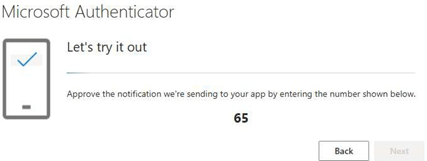
- On your mobile device, enter the number provided into the Authenticator app notification and tap “Yes.”
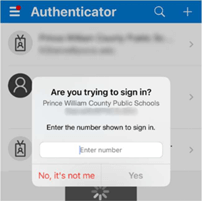
Step 9: Notification Approval
- You should see the “Notification approved” screen on your laptop/desktop if successful. Click “Next.”
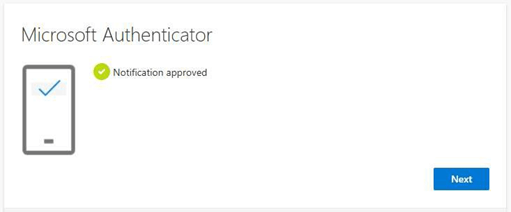
Congratulations! You have successfully completed the setup of the Microsoft Authenticator app and will now be able to use it for verification when accessing Microsoft Office 365 while off campus.
Use the Microsoft Authenticator Mobile App for MFA - Setup on a Mobile Device
Requirements: To complete this process, you must first install the Microsoft Authenticator app from the Apple App Store (iOS) or Google Play (Android) on your mobile device.
Step 1: Install the Microsoft Authenticator App on Your Mobile Device
- Install the Microsoft Authenticator app from the Apple App Store or Google Play.
Step 2: Open a Web Browser and Visit the Microsoft Security Info Webpage
- After you have installed the Authenticator app, open a web browser on your mobile device.
- Visit the Microsoft Security Info webpage and sign in with your PWCS account if prompted.
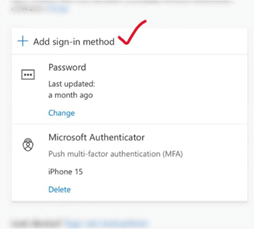
Step 3: Add Sign In Method
- Tap “Add sign-in method.”
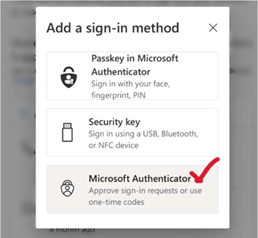
Step 4: Select the Sign In Method
- Tap “Microsoft Authenticator” to begin setting up this method.
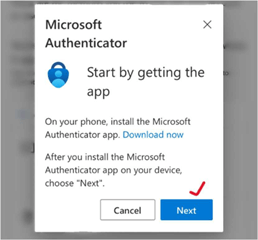
Step 5: Tap “Next”
This screen is directing you to get the Microsoft Authenticator app. You should have already installed the required app.
- Tap “Next” to continue.
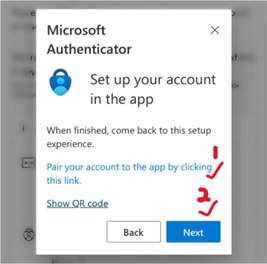
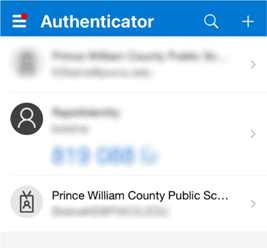
Step 6: Pair Your Account
Tap the link “Pair your account to the app by clicking this link.” This action will open the Authenticator app and add your PWCS account. Go back to your web browser and tap “Next.”
Step 7: Enter Verification Number
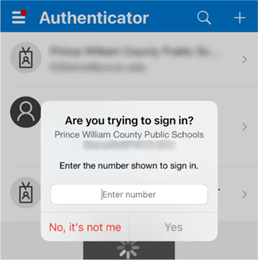
- You will be shown a number to input into the Authenticator app. Switch back to the Authenticator app and input the number provided and tap “Yes.”
Step 8: Notification Approval
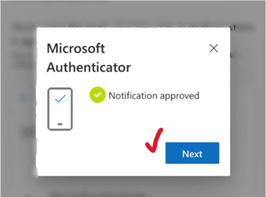
Go back to your web browser, and you will see the “Notification approved” screen load if successful.
- Tap “Next.”
Congratulations! You have successfully completed the setup of the Microsoft Authenticator app and will now be able to use it for verification when accessing Microsoft Office 365 while off campus.
Use Text Messages (SMS) for MFA
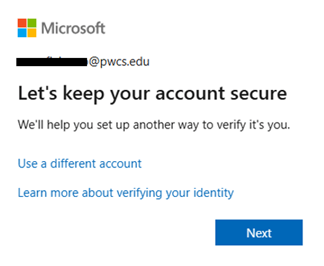
Step 1: Visit the Microsoft Outlook website and sign in with your PWCS email address. After entering your email address and password, you will be presented with the following message. Click Next to begin the setup of your MFA method.
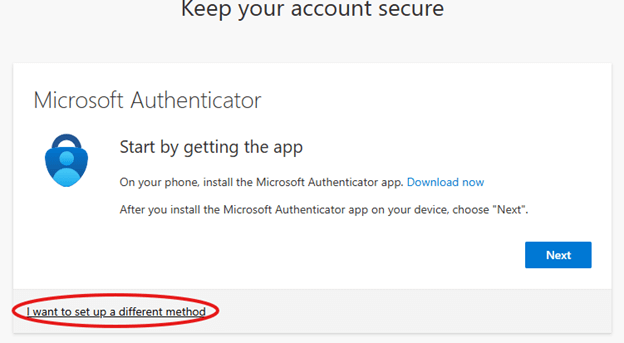
Step 2: At the next screen, click I want to set up a different method.
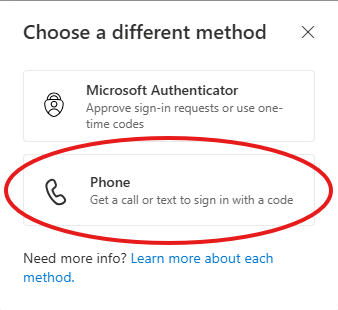
Step 3: Select Phone.
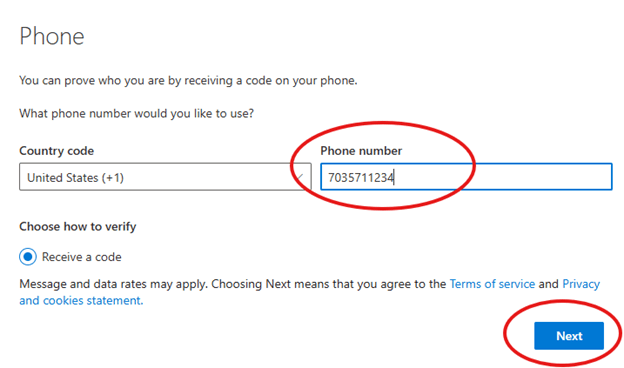
Step 4: Enter your preferred cell number. Do not include spaces or dashes. Click Next.
Step 5: After clicking Next in step 4, you should receive a text message with a 6-digit verification code. Enter the code in the space provided. If no code was received within a minute, you can click Resend code. After entering the verification code, click Next.
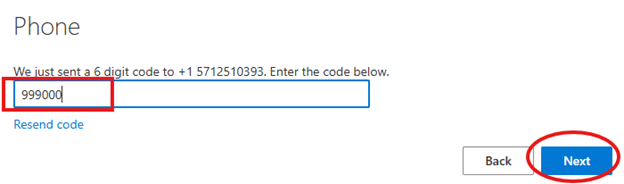
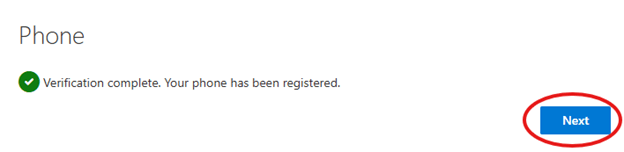
Step 6: Click Next and Done at the following screens.
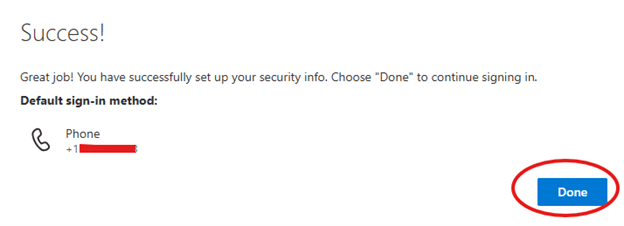
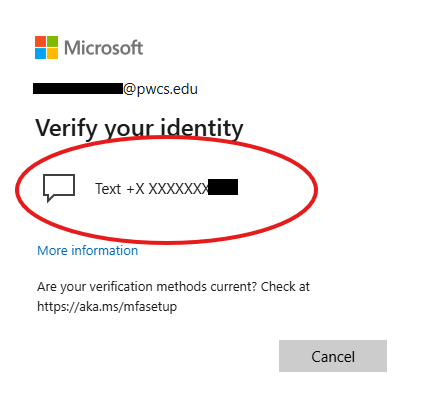
Congratulations! Your authentication method for MFA setup is complete. When prompted with the screen below, you can click the circled area to receive your verification code.