Prince William County Public Schools
Back to School Packet Instructions
Families complete the Annual Back to School Packet each school year to review important student information and complete required forms. The packet is also available year-round so you can update certain information and choices when needed.
Update Information During the School Year
Need to update information or change a choice you made in the Annual Back to School Packet? You can update and resubmit the packet at any time during the school year. Your school will be notified of your changes.
What You Can Do in the Annual Back to School Packet
The Annual Back to School Packet is available year-round. You can return to the packet and resubmit it at any time to update certain information and choices, including:
- Emergency contact information
- Preferred language for school communications
- Hazel Health mental health services enrollment
- Directory information, photo, video, and records-sharing preferences
- Contact information sharing with approved organizations
- Grades Pre-K–K: Authorize bus stop pick up contacts
- Grades 9–12:
- Choose whether to have your student's SAT/ACT test scores removed from their transcript
- Choose whether to allow your student's free or reduced-price meal status to be shared with school counselors for SAT fee waivers and other college benefits
- Choose whether to share your student's contact information with military recruiters
- Choose whether to share your student's education records with colleges, universities, and scholarship organizations (grades 11–12)
- Opt in to George Mason University's Direct Admissions program (grade 12)
How to Complete the Annual Back to School Packet
Complete the Annual Back to School Packet online through ParentVUE. You will review important student information and complete required forms and acknowledgments.
-
Log in to ParentVUE
Log in to the ParentVUE app or the ParentVUE website using your user name and password.
If you need help accessing your ParentVUE account, contact your child's school.
-
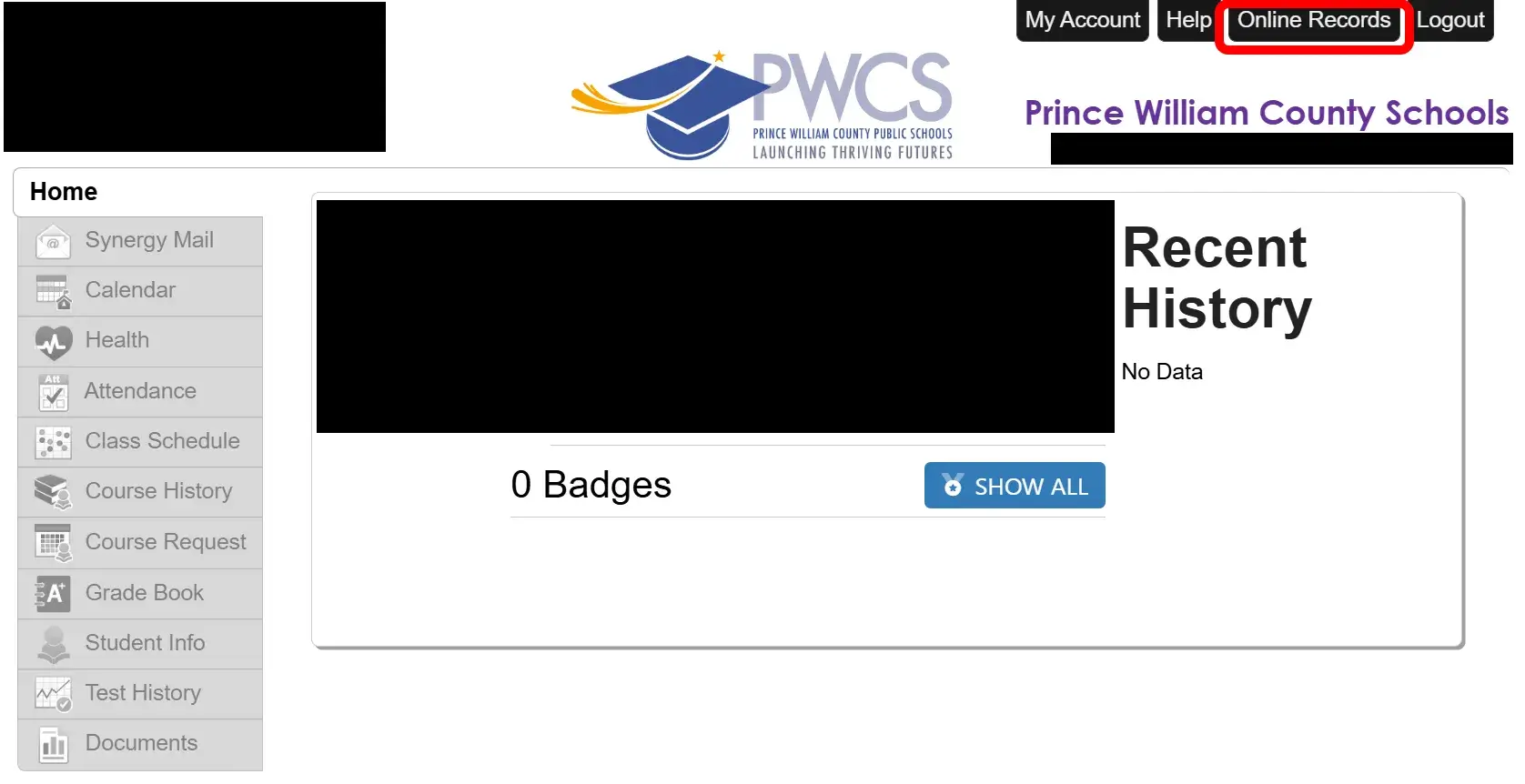
Go to the Online Records page in ParentVUE
Select Online Records at the top of the screen.
Using the mobile app? Select Online Registration instead.
-
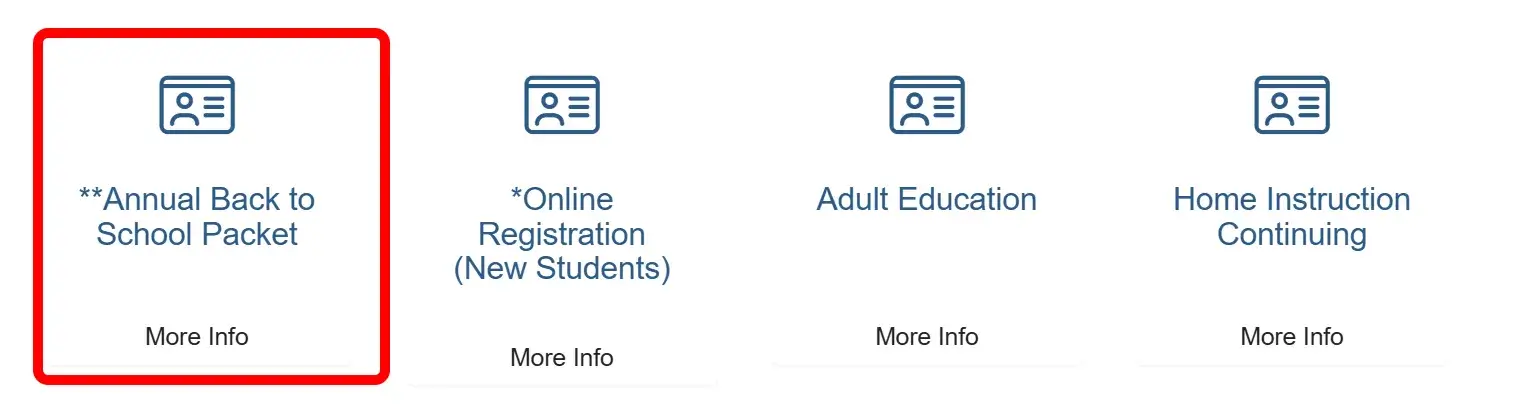
Select Annual Back to School Packet
-
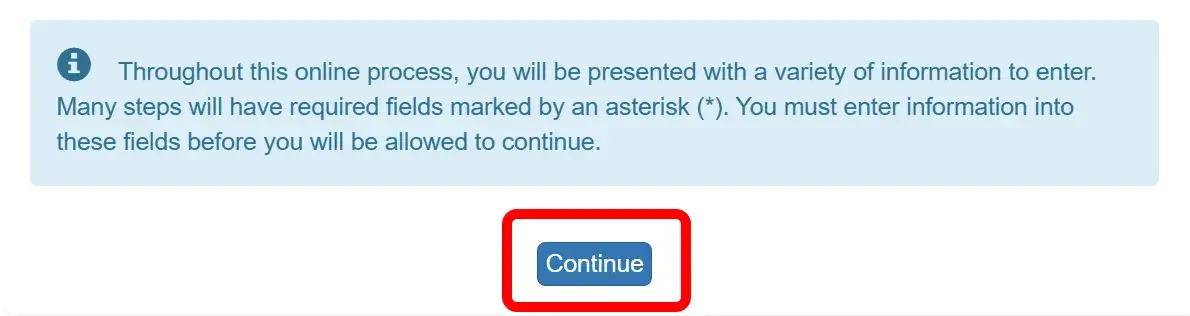
Select Continue
-
Complete Each Section
Annual Back to School Packet Sections
As you review each section of the Annual Back to School Packet, you will see instructions for completing the required information.
-
Select Save and Continue at the bottom of each screen to move to the next section.
-
Select Previous or use the menu on the left to return to a previous section.
Using the mobile app? Select the ≡ icon in the upper-left corner to open the menu. You can also select Continue at the bottom of the screen to move through each section.
Welcome section
Review the information about the Annual Back to School Packet before continuing.
Student Summary section
The Student Summary section lists all students associated with your parent account. If any information is incorrect or a student is missing, contact your child's school before continuing.
Signature section
Enter your first and last name exactly as they appear in the upper-right corner of the screen.
If your name is incorrect, contact your child's school before continuing.
Home Address section
Review your home address and make any needed changes.
If you change your home address, you may be asked to upload proof of residency later in the packet.
Mail Address section
Review your mailing address and make any needed changes.
Parent/Guardian section
Review each parent or guardian listed and add a parent or guardian if needed. For each parent or guardian, review and update the preferred ParentVUE language, military status, phone numbers, and email address.
Emergency section
Add at least two emergency contacts. Review each contact and update their name, address, preferred language, phone number, and email address as needed.
Remove any emergency contacts who are no longer needed.
Students section
Select Edit for each student to review and update their information. This includes contact information, preferred languages for school communications, health information, and emergency contacts.
Review the Consents and Acknowledgments section for each student. You can update these choices and permissions throughout the school year.
Documents section
Upload any required documents. You may also upload optional documents, if needed.
-
Review/Submit
Select Review and check that all information is correct. Select Edit next to a section to make changes.
At the bottom of the review, check the box to confirm that you reviewed the information and that it is correct. Then select Submit.
After you submit the packet, your school will be notified of any changes.